Analog video receiver · HackRF
SYCH FPV SCANNER
An Android app that receives analog video from FPV drone cameras. The HackRF board connects to the phone by cable, while the app displays the live feed and band spectrum and searches for video signals on its own.
This is a closed beta. The build is being shared with a small group of people who are testing it in the field.
- Android 9 or newer
- HackRF One, clones, or a board for PortaPack
- USB-C cable for data
Connecting receivers with Ethernet output, streaming the channel and video over the internet (rather than only over the local network, as it does now), and bringing data from several devices together in one centralized place for more detailed analysis. None of this is in this beta version yet.
The hardware hurdle
Half of failed launches are caused by the cable, not the app
- Android 9 or newer.
- HackRF One. The app works with both clones and a board for PortaPack.
- A data cable: USB-C↔USB-C, or USB-C↔micro-USB for older boards.
- An antenna for the required band.
A charge-only cable will not work — it has no data lines. In that case, the board simply will not appear on the bus, and it looks exactly like “the app cannot find anything.”
The board is powered by the phone. During extended use, the phone battery drains noticeably — this is normal and unavoidable.
First launch
Three steps to your first picture
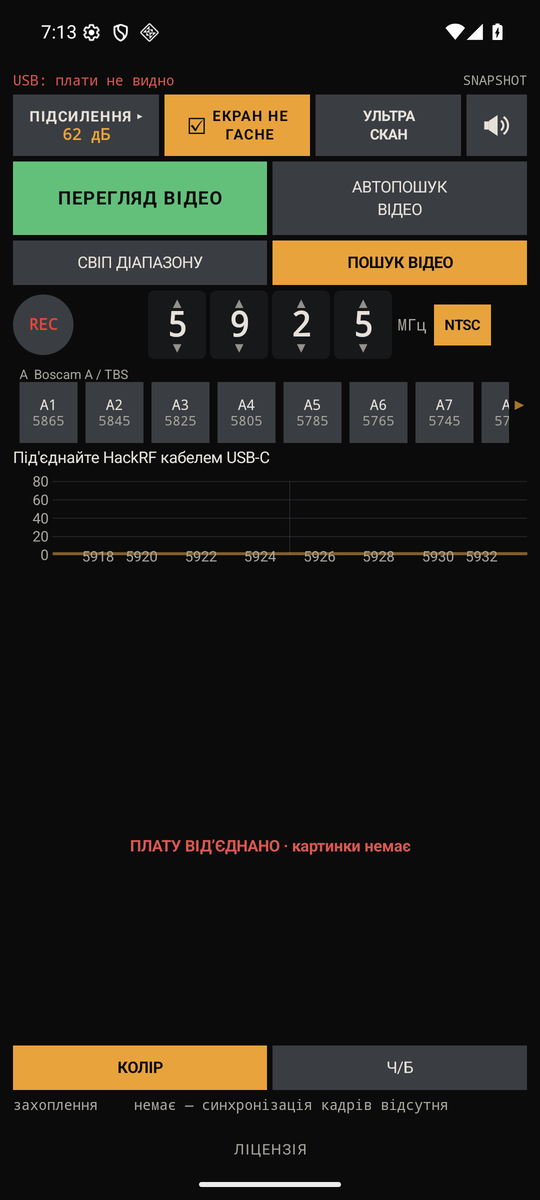
- Connect the board. The app will find it automatically. If it is in PortaPack mode, the app will return it to radio mode automatically — this takes a few seconds, so wait before reconnecting anything.
- Tap START and open the VIDEO SEARCH tab. You will see a live picture from the frequency shown in the frequency field. The channels at the bottom switch with one tap.
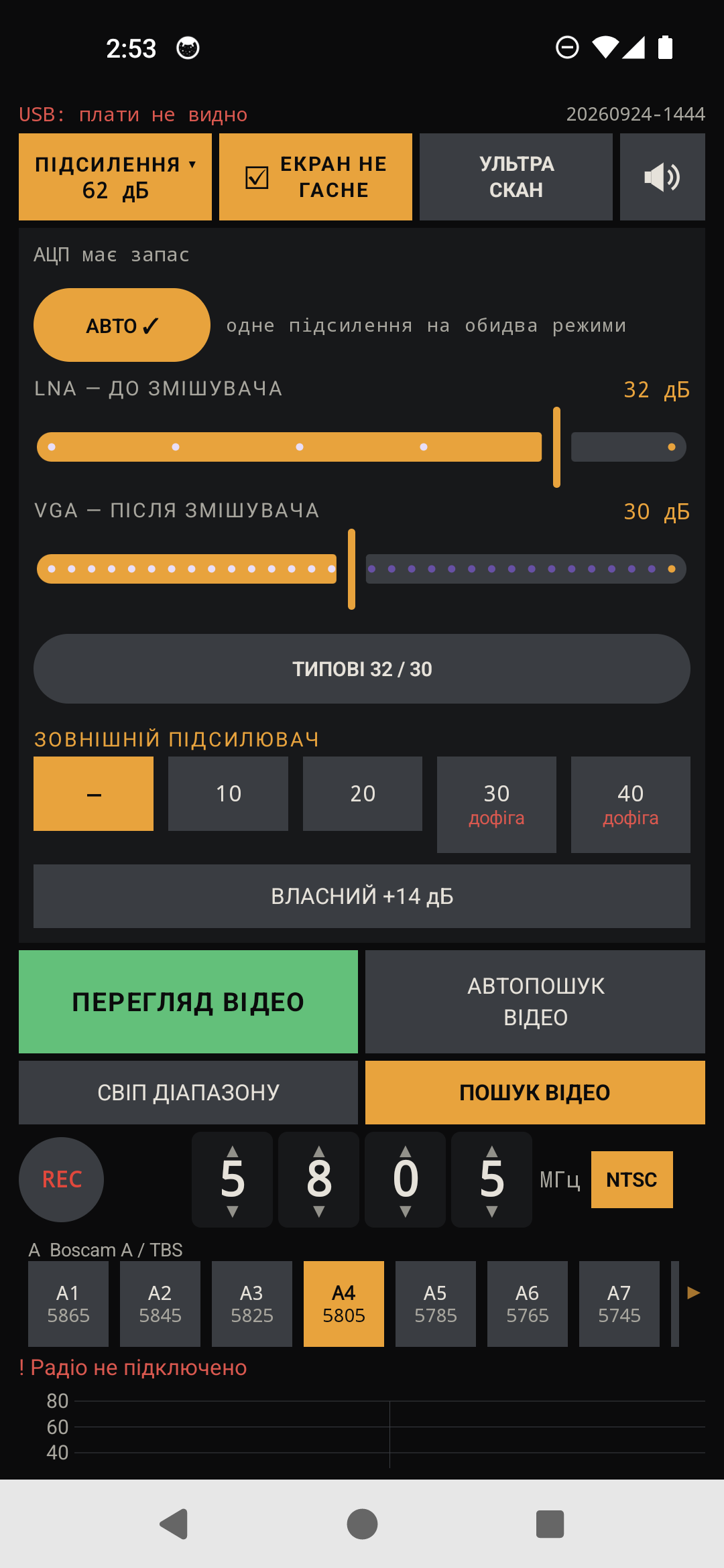
- Set the gain — see the next section. Do this before conducting a serious search: incorrect gain produces a blank screen that shows nothing even when the transmitter is operating two meters away.
Gain
Two numbers on one line, and confusing them is the costliest mistake
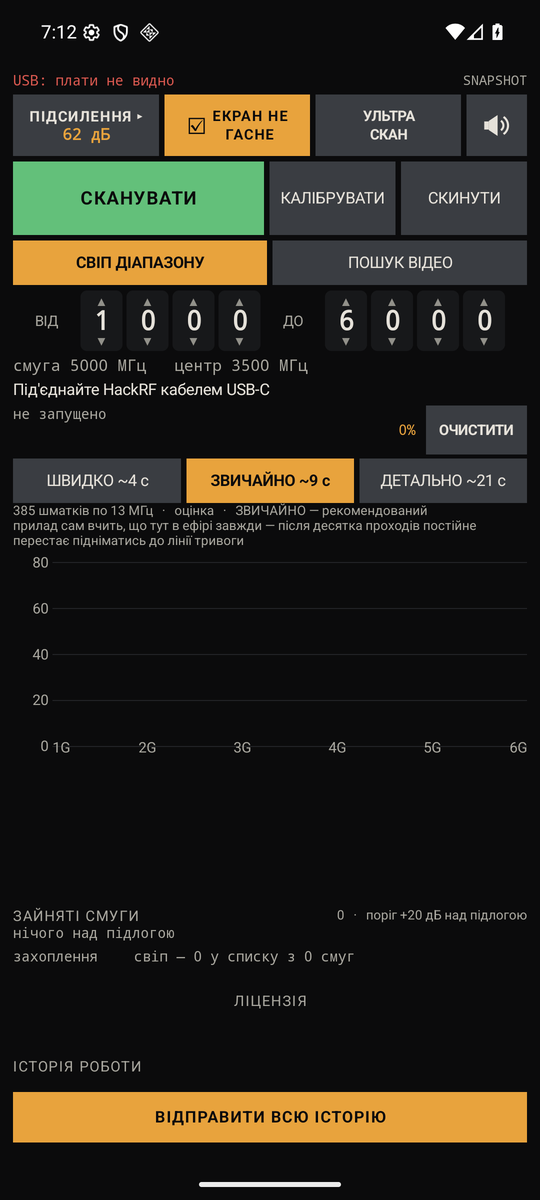
The GAIN panel has two sliders: LNA and VGA. The AUTO button (enabled by default) selects both automatically. To set them manually, first turn AUTO off.
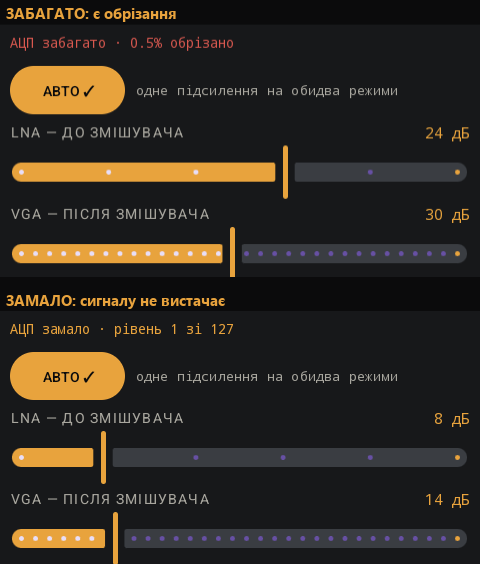
At the bottom of the screen is an ADC line — it shows whether the signal is too weak and whether the receiver is overloaded. It contains two different numbers, and they mean different things.
ADC   0% · level   4 of 127   ← too low, signal path underloaded
ADC   0% · level  60 of 127   ← good
ADC  85% · level 120 of 127   ← too high, signal is clipping
Percentage is clipping. It should be zero. Level shows how fully the signal path is loaded. It should be around 60.
Procedure: raise VGA until the percentage moves above zero. Then lower it by two steps — to leave clipping and retain some headroom. In the end, the percentage should be zero again and the level somewhere around sixty.
You need to adjust it in both directions. A level of 0 of 127 is just as much a failure as overload: in the first case, there is nothing to measure; in the second, measurement is no longer possible.
Incorrect gain looks exactly like a broken app. It is the most common cause of “nothing works” complaints when the cable is fine.
Modes
Two tabs and three tools inside them
There are only two tabs. Auto search, ultra scan, and calibration are not separate screens, but tools on these two tabs: the tab name tells you where it leads, not what is currently happening there.
VIDEO SEARCH
A live picture from one frequency. The channels at the bottom can be switched with one tap. This is the same tab as the video monitor — its name does not change depending on whether the app is searching or already showing what it found.
BAND SWEEP
The spectrum and waterfall for the entire band. You can see which frequencies have any activity before tuning to one of them.
Tools on the VIDEO SEARCH tab:
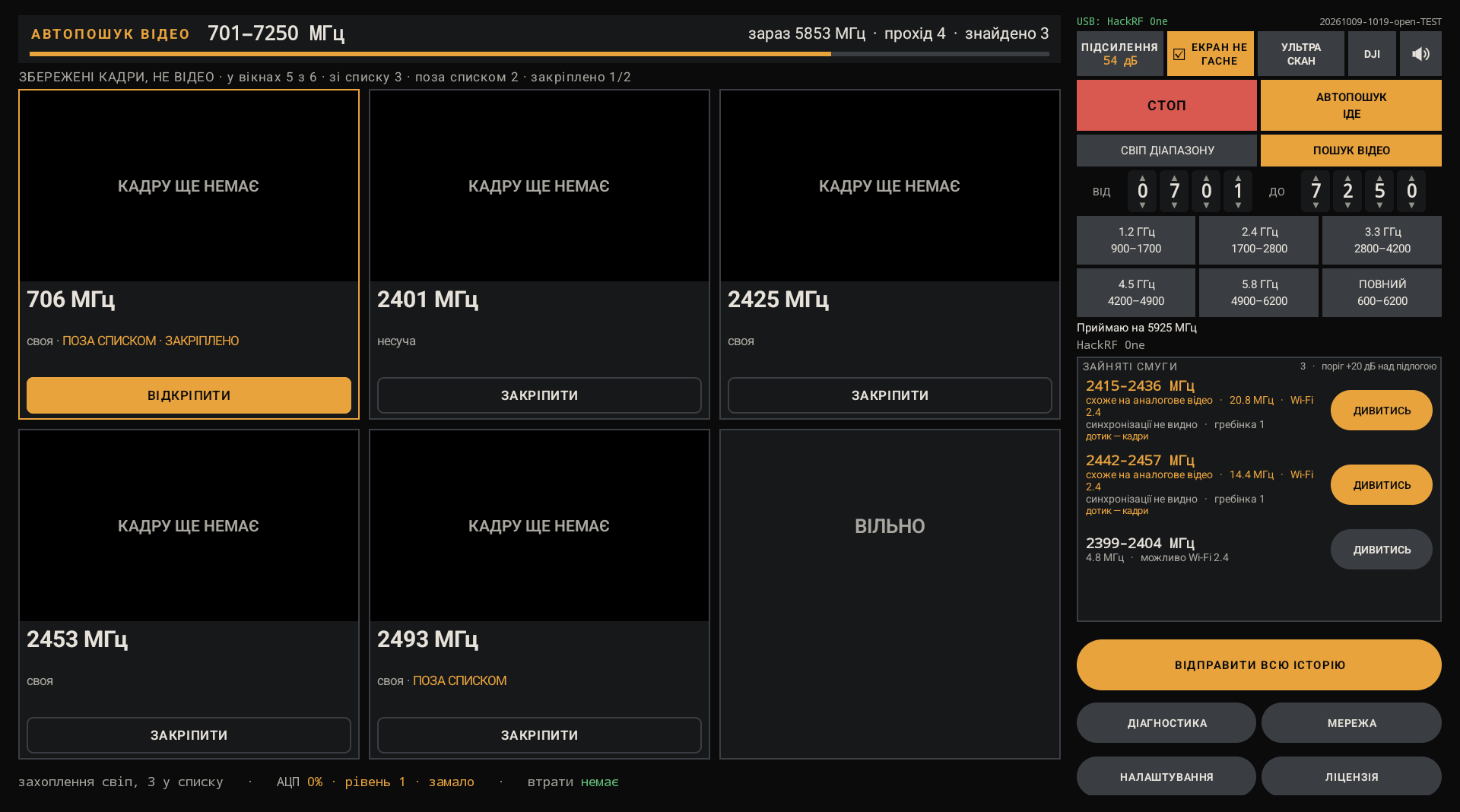
AUTO VIDEO SEARCH
A button on the VIDEO SEARCH tab, not a separate screen. It searches in the background and shows frames from found channels, cycling through them automatically. Tapping the large frequency label above the frames switches the receiver to that channel.
A confirmed channel remains in the list for up to two minutes, even when the signal drops, and is labeled HELD 1:20 · unanswered checks 2/5. While it is being held, the app checks it on every pass regardless of level. Five unanswered checks or two minutes, and the channel is forgotten.
ULTRA SCAN
Checks everything that rises above the noise, not only signals whose width resembles video. A pass takes several times longer — deliberately: this can find a camera that normal filtering rejects based on signal shape.
Tool on the BAND SWEEP tab:
CALIBRATE
Five passes during which the board, antenna, and phone remain still — the app will calculate and display the time before starting; it is not fixed. During this time, the receiver measures the noise floor at this location. Movement during calibration changes what is being measured, making the measurement meaningless.
After calibration, weak signals are noticeably easier to see.
Recording
REC writes video to a file while reception is active
The REC button on the VIDEO SEARCH tab records what is currently on the screen to an MP4 file. Finished recordings are saved in Movies/SYCH FPV/ (on supported Android versions, through the system media library, so they are immediately visible in the gallery).
Tablet and TV box
The layout changes in settings, not automatically
At the bottom of the screen, under SETTINGS, there is a LAYOUT: PHONE / TABLET switch. The tablet layout has two columns (instrument on the left, controls on the right) for a wider screen and mouse; the app does not enable it automatically based on screen size, so you must switch it manually.
Network viewing
New in this build — and this is where we need a measurement from you
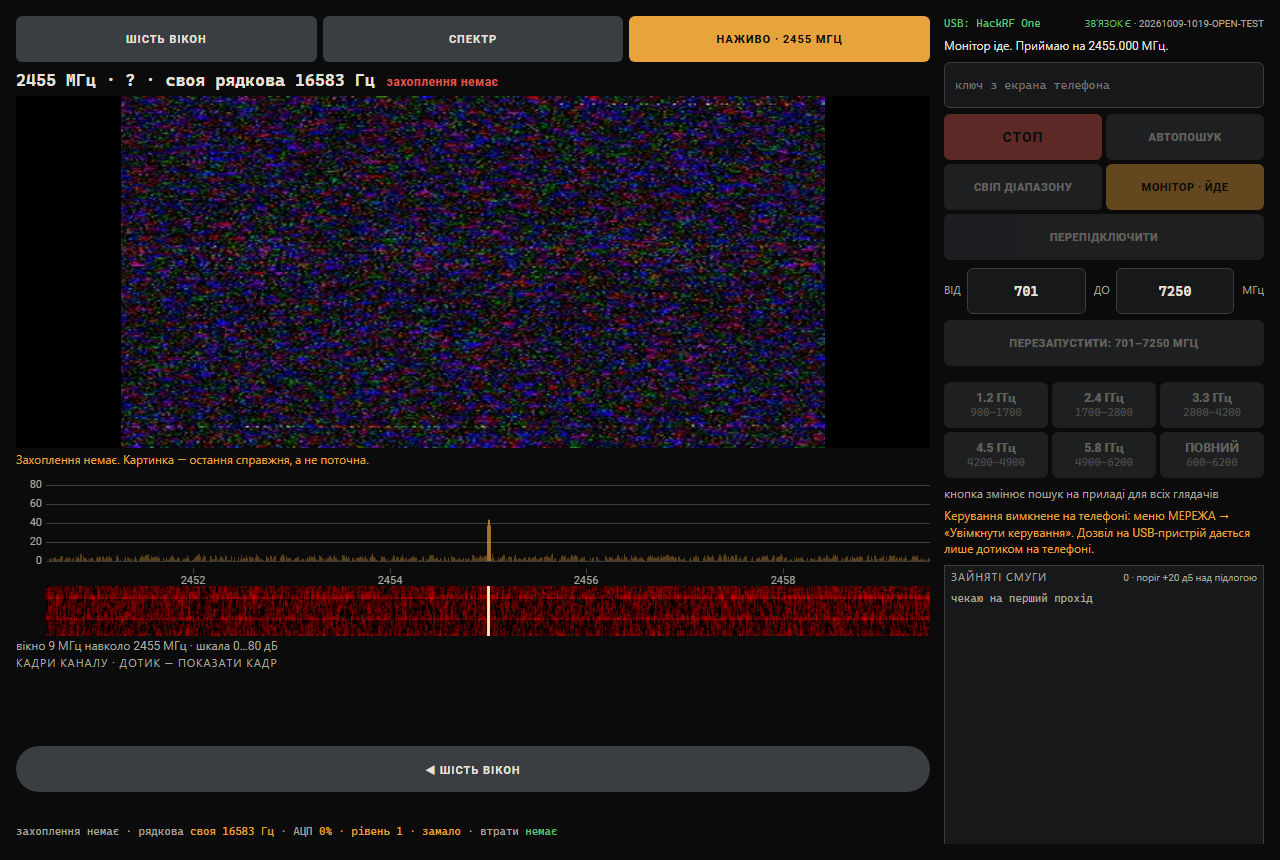
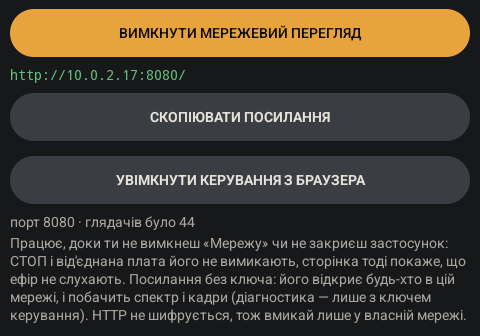
At the bottom of the screen, open NETWORK VIEW. Enable it during reception and tap COPY LINK. Open this link on a laptop or second phone on the same network — it will show the spectrum, waterfall, list of found channels, and individual frames (not continuous video).
The browser page is view-only: you cannot control the frequency, gain, or start/stop from there; all controls remain on the phone.
Three things need to be checked.
- Whether it works with the screen off. Put the phone in your pocket for half an hour and see whether the page is still updating. The app asks Wi-Fi not to sleep, but the manufacturer's power-saving modes override any request, and different devices behave differently. Tell us which phone you have and what happened — this is the measurement that cannot be made from a desk.
- How much battery it consumes during an outing, and whether the receiver itself starts slowing down.
- If the page does not open, check the “viewers seen” line. Zero means the server on the phone started, but nobody reached it: the port is listening, but the network is blocking access. Guest Wi-Fi often prevents devices from seeing one another.
The server runs only while reception is active. After STOP, disconnecting the board, or leaving the app, the page will clearly report that the connection was lost.
The link contains a key, and without it the page will not return anything. However, a plain HTTP connection is not encrypted, so this is protection from a casual viewer, not from someone monitoring the network. It is best not to enable it on someone else's network.
When something is wrong
The app deliberately tells you when it is not at fault
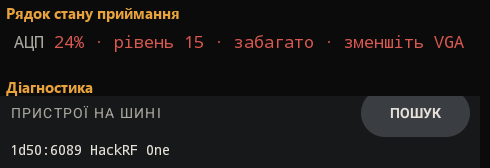
stream 24% — receiving 59 blocks of 244
The phone cannot read the data over USB fast enough. This occurs on perfectly modern devices and cannot be fixed through the app settings. Try another cable; if that does not help, try another phone. Be sure to report the model: this is exactly what is currently being investigated.
STREAM STALLED 7 s · readings below are frozen · recovering automatically
The board stopped sending data, and all readings below this line froze at their last values. This separate message was added because previously such a stall looked like ordinary overload — ADC 100%, level 127 — and adjusting VGA was pointless: the board was no longer transmitting anything, so there was nothing to measure. The app tries to restore the stream three times automatically and sounds an alert.
comb and capture invalid · reduce VGA
The converter has reached its limit. All readings below this line are currently invalid — there is no point looking at them until you reduce the gain.
The board did not return from PortaPack mode
Wait another ten seconds before reconnecting the cable. Sometimes the board takes longer to return to operating mode than the app waits for a response.
DEVICES ON BUS
If, besides HackRF One, a hub, adapter, or network card is listed, connect the board directly to the phone. A hub divides both bandwidth and power among devices, and HackRF needs both.
Diagnostics
A screenshot shows one moment, but the answer is usually in what was changing
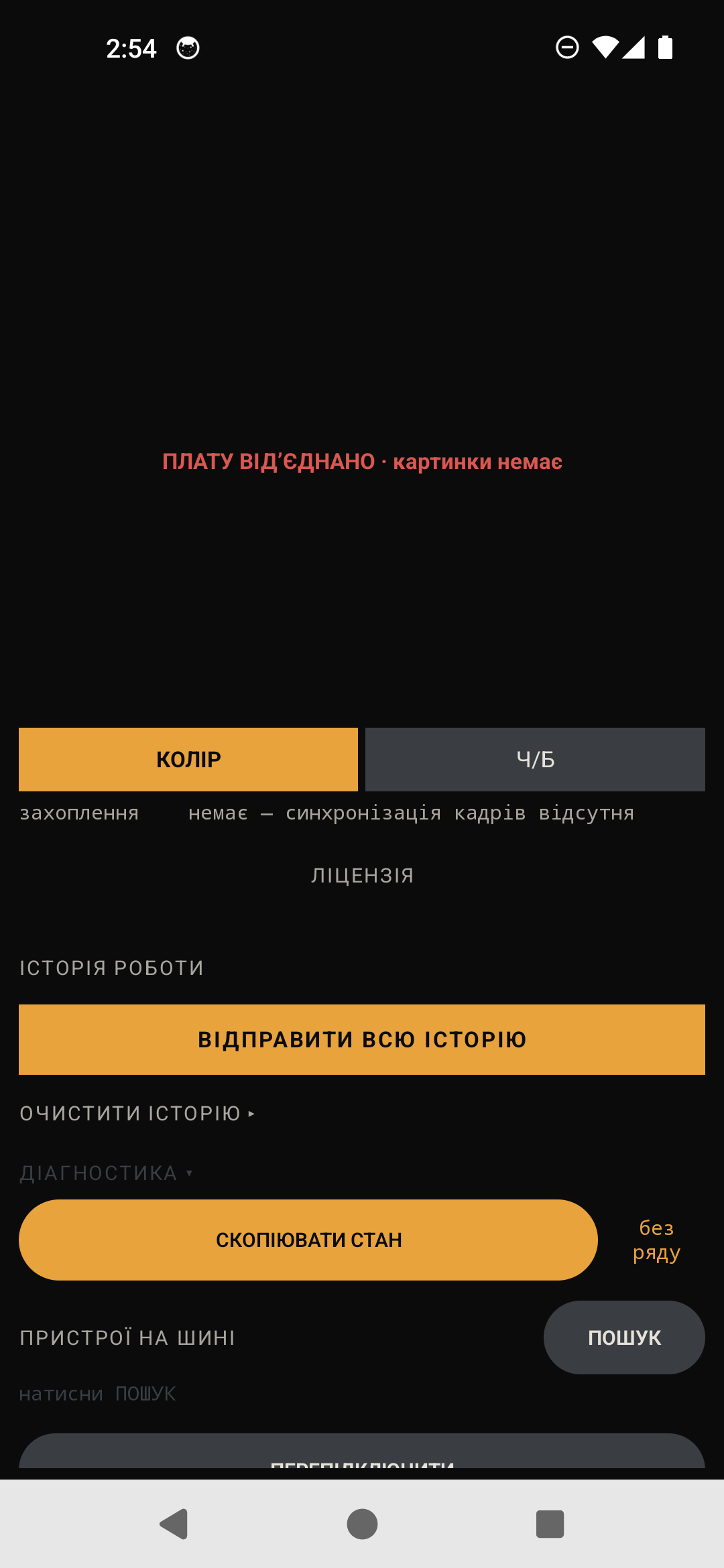
At the bottom of the screen, open DIAGNOSTICS ▸ and tap COPY DIAGNOSTICS. A long text will be copied to the clipboard: phone model, board status, stream, decoder — and a table covering the last two minutes, with a new row every half second.
Send this text, not a screenshot. A screenshot shows one moment. The table shows how the numbers moved before everything went wrong — and that is usually where the answer lies.
A gray button does not mean something is broken. It turns yellow only when there is something to copy. Until the receiver has run continuously for one minute, the button is gray, with a countdown beside it — “43 s remaining.” This is not a setting and does not enable anything: the time series is collected automatically whenever the picture is running.
If the board is disconnected or the stream stops, the countdown starts over — because two separate half-minute segments do not make one continuous minute. But what has already been collected does not disappear: the seconds immediately before the stop show the system state just before the failure, and the button will provide them. The report header shows whether the series describes “now” or what happened before the stop.
If the receiver does not start at all, the button says COPY STATE, with “no series” beside it. Tap it and send the result anyway: it contains the list of devices on the bus, board status, gain, and log — exactly what is needed when nothing is working.
What is intentionally not here yet
Some things are deliberately missing, and that is not a defect
COLOR — ON/OFF ONLY
The COLOR and B&W buttons are on the video page. Manual hue and saturation adjustment was removed from the beta to avoid cluttering the screen. We will restore it if it is missed.
NON-STANDARD LINE RATE
Cameras with a non-standard line frequency are found, but the picture may appear cropped. This is a known limitation, and work on it lies ahead.
SOUND
It uses the alarm audio stream. This lets you adjust the volume with the phone's buttons directly in the app, without opening settings.
KEY ON FIRST LAUNCH
The key comes with the build and is valid for activation for 48 hours. Once activated, it keeps working and the window is no longer needed. If you miss the deadline, ask for a new one; it takes one button press on my end.
What's new
Three changes, each worth testing precisely because it did not work this way before
RECONNECT
The button no longer queues repeated taps. Previously, it showed no response, so people tapped it again and again — and every tap added another half second of waiting and slowed recovery. Now a repeated tap says “reconnection already in progress” and adds nothing.
STREAM FRACTION
The line no longer shows 100% when there is no stream at all. It now says exactly that: “no stream.” Previously, a report from a dead board showed a cheerful one hundred, even though this is the line people use to determine whether data is flowing.
FOUND VIDEO DOES NOT FLICKER
The channel remains in the list even when the signal drops. If you have a transmitter at the edge of reception, it is especially useful for checking this: whether the result stays in the list while you walk around with the antenna, and whether the picture updates.
Feedback
The most valuable feedback is where reality differed from expectations
- Interface. What is unclear at first glance. Where you expected to find a button but did not. Which label you understood differently from what was intended. This is exactly why you received this build.
- Whether the app found your transmitter — and from what distance, with what antenna, and at what power.
- Whether what the app shows matches what you see on a conventional receiver. If they differ, report exactly what each one showed. This is the most valuable report of all.
- What annoys you. Seriously. A button in the wrong place, text that is too long, something flickering. Half of what was built here came directly from comments like these.
Get the app
Request your own copy
SYCH FPV Scanner is still a closed beta. The file is not hosted on the site: we send every person their own copy. Leave a request: we will call or write to you and send the build. A phone number is required.
Where to write
The build, diagnostics, and the entire conversation are all in one place
The app is hosted there; send diagnostics and comments there, and new versions are released there. The same link is also in the app itself, under ABOUT.
t.me/mammoth_forge